
GenDash User Manual#
Version 1.0 | All data stays on your device. No cloud required.
1 Table of Contents#
- Welcome to GenDash
- Trial Period & Lifetime License
- First Launch: The Onboarding Wizard
- Adding Your Generator — Two Paths
- 4.1 Choose from the Library
- 4.2 Enter Custom Specs
- Setting Up Your Smart Home Connection (Home Assistant)
- Unit Preferences (Metric vs. Imperial)
- Location, Weather & Environmental Settings
- Notifications & Critical Alerts
- Backup & Restore
- Starting a Monitoring Session
- During a Session: Refuel, Adjust Load & Stop
- Live Activities & Haptic Feedback
- Resetting the Database
- Frequently Asked Questions
2 Trial Period & Lifetime License#
GenDash includes a 7-day free trial that gives you full access to every feature with no restrictions. After the trial ends, a one-time Lifetime License unlocks the app permanently.
2.1 How the Trial Works#
- When you first launch GenDash, a 7-day timer starts automatically.
- The remaining trial days are visible in Settings → Get Premium.
- You have full access to everything during the trial — no features are locked.
2.2 After the Trial#
When the 7-day trial expires, the app will show the Paywall screen. You can:
- Purchase the Lifetime License — a single, one-time payment of $4.99 USD (local pricing may vary). You own it forever.
- Restore a Previous Purchase — if you already purchased on another device, tap “Restore Purchase” to re-activate without paying again.
2.3 What the Lifetime License Includes#
- All current features: real-time fuel countdown, Home Assistant integration, Live Activities, fleet management, logbook, backups
- All future updates at no extra cost
- No subscription, no recurring fees, no hidden charges
2.4 Restoring a Purchase#
If you reinstall the app or switch to a new iPhone, tap “Restore Purchase” on the paywall. GenDash silently checks your App Store receipt first. If not found, it will prompt your Apple ID password to perform a full restore.
3 Welcome to GenDash#
GenDash is your generator command centre. It is designed to answer the single most critical question during a power outage or remote operation:
“How much time do I have left before I need to refuel?”
Unlike a simple countdown timer, GenDash uses a physics-based consumption engine to model how internal combustion engines behave under varying conditions. It calculates your Time to Empty (TTE) by combining four distinct data streams:
- Your Fuel Profile: The starting volume and usable tank capacity of your specific unit.
- The Model Curve: Data from our Seed Library, which uses manufacturer-published specifications to model how your specific generator (Honda, Predator, Generac, etc.) burns fuel as electrical load increases.
- Electrical Load: Real-time wattage consumption, pulled automatically from your Home Assistant instance via your local network or entered manually.
- The Environment: Local temperature and altitude. GenDash adjusts its estimates to account for thermal efficiency loss in extreme cold and oxygen penalties at high elevations.
The result is a continuously updated countdown displayed on your dashboard, your iPhone Lock Screen, and in the Dynamic Island at the top of your screen.
⚠️ Reliability & Safety Notice#
GenDash is a mathematical simulation, not a physical fuel sensor.
- Estimates Only: The Time to Empty is an estimate based on manufacturer specifications and environmental modeling. It cannot detect physical fuel leaks, engine malfunctions, or changes in fuel quality.
- Environmental Variables: Factors such as engine wear, maintenance status, and extreme weather may cause your actual runtime to differ from the estimate.
- Human Oversight Required: Never rely solely on GenDash for life-safety equipment or critical medical power needs. Always perform physical fuel checks during extended outages.
🛡️ Privacy First#
Your data never leaves your phone. GenDash is a local-first application.
- No Accounts: There is no GenDash account to create and no personal data collected.
- No Cloud Tracking: All generator telemetry and configuration settings are stored securely on your device using standard iOS encryption (SwiftData).
- Quebec Law 25 Compliance: As a developer based in Quebec, I am committed to your privacy. Since no data is collected or stored on external servers, there is no data for us to disclose or sell.
- Direct Communication: If you use the Home Assistant integration, that data is sent directly between your device and your server on your local network.
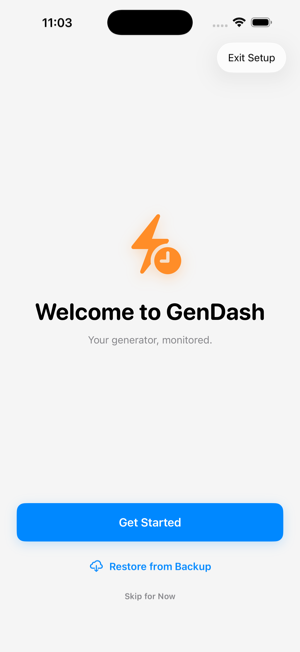
4 First Launch: The Onboarding Wizard#
When you open GenDash for the first time, a setup wizard walks you through four steps. You can skip any step and configure it later from the Settings screen.
4.1 Location & Environment#
GenDash will ask permission to use your iPhone location. This is used to automatically detect:
- Your altitude (elevation above sea level)
- Your local temperature
Both factors affect how efficiently your generator burns fuel. A generator at 6,000 feet loses roughly 18% of its output compared to sea level. Cold weather below 20°C adds additional inefficiency.
You can also skip this and enter altitude/temperature manually later in Settings > Environment.
Privacy note: Your location is used only to fetch weather data from a public weather service (Open-Meteo). Your coordinates are never stored, transmitted to GenDash servers, or shared with third parties. The app has no backend. If you prefer, deny location access and use the manual environment controls instead.
4.2 Smart Home Bridge (Optional)#
If you use Home Assistant to monitor your home electricity, you can connect it now. See Section 5 for the full setup guide. You can also skip this and connect later.
4.3 Add Your Generator#
You will be asked to add your first generator profile. See Section 4 for the two ways to do this.
4.4 Notifications#
GenDash will ask permission to send you notifications. This enables:
- Fuel level alerts (e.g., “1 hour of fuel remaining”)
- Generator stall alerts (the engine stopped unexpectedly)
- Critical alerts that sound even when your phone is silenced
This is important. During a power outage, you may be asleep or away from your phone. A critical notification that bypasses Do Not Disturb can be the difference between waking up to refuel in time and waking up to a dead freezer.
You can always adjust these settings later at Settings > Notifications or directly in your iPhone Settings app under GenDash.
5 Adding Your Generator — Two Paths#
Access the generator setup at any time from the Garage tab (bottom navigation bar), then tap the + button in the top-right corner. A menu appears with two choices:
5.1 Choose from the Library#
The Library contains pre-configured profiles for over 60 popular models from Honda, Yamaha, Generac, Kohler, Champion, Predator, EcoFlow, Jackery, Anker, Bluetti, and more.
How to use it:
- Tap Choose from Library
- Browse or search by brand name
- Tap your model to select it
- Review the pre-filled specs — they come from manufacturer documentation
- Tap Save
Library highlights (sample models):
| Model | Type | Fuel | Tank | Rated Watts |
|---|---|---|---|---|
| Honda EU2200i | Inverter | Gasoline | 3.6 L | 1,800 W |
| Honda EU7000iS | Inverter | Gasoline | 19.2 L | 5,500 W |
| Yamaha EF2200iS | Inverter | Gasoline | 4.7 L | 1,800 W |
| Generac GP3300i | Inverter | Gasoline | 4.0 L | 2,500 W |
| Generac Guardian 22kW | Standby | Propane | 420 lb tank | 22,000 W |
| Kohler 20RESC | Standby | Propane | 420 lb tank | 20,000 W |
| Champion 8000W | Traditional | Gasoline | 29.1 L | 8,000 W |
| Predator 3500 Inverter | Inverter | Gasoline | 9.8 L | 3,000 W |
| EcoFlow Delta Pro 3 | Battery | Battery | 4,096 Wh | 4,000 W |
| Jackery Explorer 2000 Plus | Battery | Battery | 2,042 Wh | 3,000 W |
If your exact model is not listed in the App Library, choose the closest match or use Enter Custom Specs (4.2).
5.2 Enter Custom Specs#
Use this path if your generator is not in the library, and want precise control over every setting.
Field-by-field guide:
Profile Name (Required)#
A technical name for your machine. Use the model number if you like. Example: “EU2200iTC” or “Generac GP5500”
Nickname (Optional)#
A friendly location label, shown as a subtitle on the dashboard. Example: “Garage”, “Guest House”, “Campsite Unit 2”
Technology Type#
This is one of the most important settings. It determines how GenDash models your fuel burn.
-
Inverter (Variable Speed) — Modern “smart” generators (Honda EU, Yamaha EF, Predator inverter series, EcoFlow WAVE gas). The engine automatically slows down when demand is low, saving significant fuel. GenDash uses a curved efficiency model — at 25% load, an inverter can run 3× longer than at 100% load. Example models: Honda EU2200i, Yamaha EF2000iSv2, Predator 2000, WEN 56200i, Champion 2500W Inverter
-
Traditional (Constant 3600 RPM) — Older-style generators that run the engine at full speed regardless of load. Fuel economy is relatively flat — the engine uses almost the same amount of fuel whether you are powering a lamp or a full house. Example models: Generac GP8000E, Champion 8000W, DuroMax XP13000HX, Honda EM5000SX, DeWalt DXGN6000
-
Battery / Power Station — No combustion engine. These units discharge a built-in lithium battery pack. Discharge rate is proportional to load; GenDash models this as a linear draw against the total Wh capacity. No altitude or temperature combustion penalties apply. Example models: EcoFlow Delta Pro 3, Jackery Explorer 2000 Plus, Anker SOLIX F3800, Bluetti AC500
How do you know which type you have? Check your generator manual. If the spec sheet mentions “Eco Throttle”, “Smart Throttle”, or “Economy Mode”, it is an inverter. If the specs just list a single runtime (e.g., “8 hours at 50% load”), it is likely traditional. If the unit has no fuel cap and lists capacity in Watt-hours (Wh), it is a battery station.
Fuel Type#
Choose from:
- Gasoline — Standard portable generators
- Propane — Standby units or dual-fuel generators running on propane
- Diesel — Large construction or RV generators
- Battery — Portable power stations (EcoFlow, Jackery, Anker, Bluetti, etc.). No combustion engine; capacity is measured in Watt-hours (Wh) instead of litres.
Supports Eco Mode#
Toggle this ON if your inverter generator has an Eco/Economy mode and you typically run it with that mode active. This enables GenDash to apply the most accurate fuel savings curve.
Note: This toggle is automatically disabled for Traditional generators and Battery / Power Stations, since they do not have variable-speed combustion technology.
Tank Capacity (Required — gasoline, propane, and diesel generators)#
The size of your fuel tank.
- Find this number on the spec sheet or physical label of your generator
- Enter it in Litres (the app can display in gallons, but stores in litres internally)
- Common values: Honda EU2200i = 3.6 L, Champion 8000W = 29.1 L, Honda EU7000iS = 19.2 L
Tip: 1 US gallon = 3.785 L. If your manual shows gallons, multiply by 3.785.
Battery Capacity (Required — battery / power station only)#
For battery-powered stations, enter the total usable capacity in Watt-hours (Wh).
- Find this on the product label or spec sheet
- Common values: EcoFlow Delta Pro 3 = 4,096 Wh, Jackery Explorer 2000 Plus = 2,042 Wh, Anker SOLIX F3800 = 3,840 Wh
Note: Some manufacturers list capacity in kilowatt-hours (kWh). Multiply by 1,000 to get Wh (e.g., 3.84 kWh = 3,840 Wh).
For Propane Generators — Tank Configuration#
If you selected Propane, you will see a special propane section instead of a tank capacity field.
- Tank Type: Choose the standard North American propane tank size:
- 20 lb (barbecue tank)
- 100 lb (medium outdoor tank)
- 420 lb (standard standby generator tank)
- 500 gallon (large buried tank)
- Tank Units: How many tanks are connected (1 to 10, for manifolded setups)
Important — Propane Safety: Propane tanks are legally filled to only 80% capacity (the remaining 20% is an expansion safety buffer). GenDash automatically enforces this 80% ceiling throughout the app. Never attempt to enter a fill level above 80% for propane.
Rated Watts (Required)#
The continuous power output your generator is rated for. This is what the manufacturer guarantees the machine can sustain indefinitely.
- Find this on the spec sticker on the generator or the front page of the manual
- It is always lower than “Peak” or “Surge” watts
- Examples: Honda EU2200i = 1,800 W, Champion 8000W = 8,000 W
Surge Watts (Required)#
The peak wattage your generator can handle for a brief moment (typically 1-3 seconds) when a motor starts. This is always higher than Rated Watts.
- Examples: Honda EU2200i = 2,200 W, Champion 8000W = 10,000 W
- GenDash uses this value to warn you if your entered load exceeds safe operating limits
Rated vs. Surge — Why it matters: A refrigerator compressor starting up can momentarily draw 3-5× its running wattage. If your generator cannot handle the surge, it will trip the breaker or stall. GenDash warns you when you are approaching the surge limit.
Advanced Consumption Curve (Optional — for power users; gasoline, propane, and diesel only)#
By default, GenDash uses an industry-standard formula to estimate burn rate. For even greater accuracy, you can enter runtime data directly from your owner manual.
Enable Advanced Consumption Curve and enter the runtime values (in hours, on a full tank) at:
- 25% Load: Light-duty operation
- 50% Load: Half capacity (this is the most commonly published spec)
- 100% Load: Full rated capacity
Example using Honda EU2200i spec sheet:
- 25% Load (450W): 8.1 hours
- 100% Load (1800W): 3.2 hours
You need at least 2 values for this feature to activate. If you only fill one, GenDash falls back to the standard formula automatically.
Battery stations: This section does not apply. GenDash calculates battery discharge directly from the Wh capacity and your live load — no curve entry is needed.
Cost per Litre / Gallon (Required)#
Enter the current price of fuel in your area. GenDash uses this to calculate the dollar cost of each monitoring session. This appears in your session reports.
Default Generator#
If you have multiple generators, toggle this ON to make this one appear automatically when you open the app.
6 Setting Up Your Smart Home Connection (Home Assistant)#
Home Assistant is an open-source smart home platform. If you have smart power meters or smart plugs that report wattage, GenDash can read this data automatically.
6.1 Step 1: Add Your Server#
Go to Settings > Smart Home Bridge, then tap Add Server.
Fill in:
| Field | What to enter | Example |
|---|---|---|
| Name | A label for this hub | “Home Hub” |
| Local URL | Your HA address on your home network | |
| Remote URL (optional) | External access URL for when you are away from home | |
| Long-Lived Token | Your HA authentication token | (see below) |
6.2 How to get your Long-Lived Token from Home Assistant:#
- Open Home Assistant in your browser
- Click your profile picture (bottom-left)
- Scroll to the very bottom: Long-Lived Access Tokens
- Click Create Token, give it a name like “GenDash”, and copy the token immediately — Home Assistant only shows it once
6.3 Step 2: Understand Local vs. Remote URL#
- Local URL: Only works when your iPhone is on the same Wi-Fi network as your Home Assistant server. This is the fastest and most reliable connection during normal operation.
- Remote URL: Works from anywhere — useful if you lose Wi-Fi during an outage and switch to cellular data. Requires you to have set up external access to your Home Assistant (via Nabu Casa, DuckDNS, Cloudflare, or a VPN).
GenDash automatically tries the Local URL first. If it cannot connect within a few seconds, it falls back to the Remote URL transparently. You do not need to do anything — the switch is automatic.
6.4 Step 3: Link Sensors to a Generator Profile#
Once your server is saved and connected (you will see a green dot):
- Go to Garage > [Your Generator] > Edit (pencil icon)
- Scroll to the Smart Home Bridge section
- Select your server from the Linked Server picker
- Under Add Entity, select each power sensor that measures your home’s load
Each linked entity will display its current wattage in real-time. After a few moments, a green bolt icon means live data is flowing. A red bolt means that sensor is not reporting.
You can link multiple sensors. For example:
- — whole-home usage
- — just the generator circuit
6.5 What Happens During a Connection Drop?#
If your Wi-Fi or Home Assistant goes offline during a session:
- GenDash preserves your last-known wattage and continues calculating
- A network drop indicator appears on the dashboard
- When connectivity returns, GenDash automatically patches the gap by fetching the historical data from Home Assistant for the period it was disconnected
This means your session log remains accurate even through network interruptions.
6.6 Recommended Hardware for Load Monitoring#
To get the most out of GenDash, you need accurate wattage data. Here are the most popular devices used by the community:
Standalone Watt Meters (Manual Entry)#
If you aren’t using Home Assistant, these devices help you “budget” your power by checking appliances one by one:
- P3 Kill A Watt (P4400): The gold standard for checking 120V appliances.
- Clamp-on Multimeters (e.g., Klein CL220 or Fluke 323): Best for measuring the total load at your generator’s main cable or transfer switch. Note: Requires safely clamping around a single “hot” wire.
Home Assistant Compatible Sensors (Automatic)#
These link directly to GenDash for real-time, hands-off monitoring:
Smart Plugs (Individual Appliances):
- Sonoff S31: Extremely popular, budget-friendly, and easy to flash with ESPHome/Tasmota for 100% local control.
- Shelly Plug US: Small, reliable, and works locally out of the box with the Home Assistant Shelly integration.
- Kasa KP115 / EP25: Reliable Wi-Fi plugs that support energy monitoring (the EP25 also supports Matter).
Panel & Whole-Home Monitors (Total Load):
- Emporia Vue Gen 2/3: The most cost-effective way to monitor your entire breaker panel. Uses CT clamps to measure the main generator feed and individual circuits.
- Shelly Pro 3EM: A professional, DIN-rail mountable meter that is excellent for monitoring 240V generator inlets.
- Refoss Home Energy Monitor: A Wi-Fi based meter with CT clamps that integrates natively with Home Assistant.
- IoTaWatt: An open-hardware favorite for those who want high-resolution data stored locally.
7 Unit Preferences#
Go to Settings > Units to choose between:
- Metric: Fuel displayed in Litres (L)
- Imperial: Fuel displayed in US Gallons (gal)
This setting affects all displays throughout the app: the dashboard gauge, the refuel sheet, the session start form, and all historical records.
The app stores all data internally in litres and converts for display only. You can switch units at any time without losing data.
8 Location, Weather & Environment#
8.1 Why This Matters#
Generators lose efficiency in two conditions:
- High Altitude: Thinner air means less oxygen for combustion. Every 1,000 feet above 500 ft costs roughly 3.5% of engine efficiency.
- At sea level (Vancouver, Miami): 0% penalty
- At 3,000 ft (Denver suburb): ~8.75% penalty
- At 6,000 ft (mountain cabin): ~18.5% penalty
- Cold Temperature: Below 20°C, engines run slightly less efficiently due to denser air and fuel viscosity.
- Above 20°C (68°F): 0% penalty
- At 0°C (32°F): ~5% penalty
- At -10°C (14°F): ~10% penalty
- At -20°C (-4°F) or colder: 15% penalty (maximum)
Note: These penalties do not apply to battery-powered stations (EcoFlow, Jackery, etc.), as they have no combustion engine.
8.2 Automatic Mode (Recommended)#
If you granted location permission, GenDash reads your iPhone GPS for altitude and fetches current temperature from a public weather service. The dashboard shows your nearest town name and current conditions.
Your location is used only on-device and for the weather API call. It is never sent to GenDash or stored anywhere beyond your phone.
8.3 Manual Override#
If you prefer not to use location services, go to Settings > Environment and enter:
- Altitude manually in metres or feet
- Temperature manually in Celsius
You can toggle back to automatic at any time. Manual values are saved even if you switch back to automatic, so they are there as a fallback.
8.4 Changing Environment Settings After Onboarding#
- Open Settings (gear icon, bottom tab)
- Tap Environment
- Toggle Use GPS Location on or off
- If off, enter your Altitude and Temperature manually
- Changes take effect immediately on the active session
9 Notifications & Alerts#
9.1 Types of Alerts#
| Alert Type | When it fires | Bypasses Silent/Focus? |
|---|---|---|
| Custom Fuel Alert | X minutes/hours before empty | Only if marked Critical |
| Generator Stall | Engine detected stopped unexpectedly | Yes (always Critical) |
| Tank Empty | Fuel calculated to be fully depleted | Yes (always Critical) |
9.2 Setting Custom Fuel Alerts#
- On the dashboard, tap the Bell icon (top-right area)
- Tap Add Alert
- Use the time wheel to choose hours and minutes before empty (e.g., 1h 30m)
- Toggle Critical Alert if you want it to sound regardless of phone mute status
- Tap Add Alert
You can add as many alerts as you want per generator. For example:
- 2 hours before empty: standard notification (a gentle reminder)
- 30 minutes before empty: critical notification (cuts through Do Not Disturb)
9.3 Recommendation for Overnight Use#
Always set at least one Critical Alert for 30–45 minutes before empty. This gives you enough time to safely go outside, prepare fresh fuel, and perform the refuel before the generator runs dry.
9.4 Modifying Notification Permissions After Onboarding#
- Open your iPhone Settings app
- Tap GenDash
- Tap Notifications
- Enable Allow Notifications and Critical Alerts
10 Backup & Restore#
10.1 Why Backups Matter#
GenDash stores everything locally on your iPhone. If you delete the app, get a new phone, or perform a factory reset, your data (generator profiles, run history, smart home settings) would be lost without a backup.
10.2 Creating a Backup#
- Go to Settings > Data Management
- Tap Export Backup
- A standard iOS Share Sheet appears
- Choose Save to Files to store it in iCloud Drive or your local storage
- You can also AirDrop it, email it, or send it to any app
The backup file is a single file containing:
- All generator profiles and their specs
- Your complete run history (logbook)
- Your smart home server configurations
10.3 Restoring from a Backup#
- Go to Settings > Data Management
- Tap Restore from Backup
- Navigate to your backup file in the Files app
- GenDash validates the file and shows you a summary of what will be restored
- Confirm to complete the restoration
Warning: Restoring from a backup replaces all current data. Perform an export first if you want to keep your current records.
10.4 When to Back Up#
- Before major iOS updates
- Before getting a new iPhone
- Once a month during heavy generator use seasons (hurricane season, winter storm season)
- After adding a new generator profile or completing a significant run
- Before an App update
11 Starting a Monitoring Session#
A “session” (called a Run in the app) is one continuous monitoring period — from when you start your generator to when you shut it down.
11.1 Step 1: Select Your Generator#
On the main Dashboard, the active generator name appears at the top. If you have multiple generators, tap the name to switch. You can also go to the Garage tab and tap any generator to make it active.
11.2 Step 2: Tap “Start Run”#
Tap the large green Start Run button at the bottom of the dashboard. The Start Run sheet slides up.
11.3 Step 3: Enter Your Starting Fuel Level#
The sheet shows your fuel level as a percentage. You can also enter a precise volume in litres/gallons.
Quick preset buttons let you tap a common fill level:
- 25% / 50% / 75% / 100% for gasoline and diesel generators
- 20% / 40% / 60% / 80% for propane (enforcing the 80% safety ceiling)
- 25% / 50% / 75% / 100% for battery stations (representing percentage of Wh capacity remaining)
The app remembers your last session’s ending fuel level and pre-fills it as a starting point.
11.4 Step 4: Enter Your Starting Wattage#
If you have a Smart Home connection:#
The sheet shows a live wattage reading from your linked sensors. The green network icon confirms the data is live. You can use this value as-is — it automatically becomes your starting load.
If you do not have a Smart Home connection:#
Enter your estimated wattage manually. Add up the watts of everything you have plugged into the generator.
Common wattage reference:
| Appliance | Approximate Watts |
|---|---|
| Refrigerator (running) | 100–400 W |
| Refrigerator (startup surge) | 400–1,200 W |
| Chest Freezer | 100–300 W |
| Window AC (small) | 900–1,500 W |
| Portable fan | 50–100 W |
| LED lighting (10 bulbs) | 50–100 W |
| Sump pump | 800–1,500 W |
| Microwave | 600–1,200 W |
| Coffee maker | 600–1,200 W |
| Phone/laptop charging | 20–100 W |
| Medical device (CPAP) | 30–60 W |
Tip: Start conservatively. It is better to enter 600W and monitor the dashboard than to over-report and get an inaccurate prediction.
11.5 Step 5: Enter Fuel Cost (Optional)#
If you want to track operating costs, enter the price per litre or gallon. This pre-fills from your generator profile if you set it there.
11.6 Step 6: Tap “Start”#
The sheet closes and the dashboard activates. You will see:
- The Time to Empty countdown begin
- The Fuel Gauge showing your starting level
- The Live Watts display
- A Live Activity appear on your Lock Screen and in the Dynamic Island
12 During a Session: Refuel, Adjust Load & Stop#
12.1 Refueling Mid-Session#
When you add fuel to your generator:
- Tap the fuel pump icon (or the word Fuel in the dock at the bottom)
- The Refuel Sheet slides up, pre-filled with your current estimated fuel level
- Choose a Quick Preset (25%, 50%, 75%, 100% of tank) or enter an exact amount
- Tap Update Fuel Level
The dashboard immediately recalculates your Time to Empty based on the new fuel amount. The refuel event is recorded as a timestamped entry in your session log.
Propane reminder: The refuel sheet enforces the 80% maximum for propane tanks and shows an error if you try to enter a higher value.
12.2 Adjusting the Load (Watts)#
Your power consumption changes during a session — the AC turns on, someone starts cooking, or you shed load to extend runtime. To update it:
- Tap the Watts display on the dashboard, or tap Watts in the dock
- The Load Entry sheet opens
The Load Entry sheet has two sections:
Smart Home Feeds (if connected)#
Lists all your linked sensors and their current live wattage. These update automatically — you do not need to do anything.
If you want to temporarily ignore the smart feed (e.g., the reading seems wrong), toggle Manual Override. The app takes a snapshot of the current smart reading and converts it to a manual entry so your load does not drop to zero.
Manual Sources#
You can add individual load items with a name and wattage. For example:
- “Fridge” — 200 W
- “Window AC” — 1,100 W
- “Lights” — 80 W
Tap Add Source to add a row, or swipe left on any row to delete it. The Total Load at the top updates live as you type.
Tap Set Total Load to confirm. The dashboard updates and the load-change event is logged to your session history.
12.3 Stopping a Session#
Tap the main action button on the dashboard (the red stop button, or the running indicator). The Run Summary sheet appears with three options:
-
Stop Engine — Records that the engine is OFF but keeps the session open. Use this if you are pausing temporarily (e.g., shutting down overnight but planning to restart in the morning). The timer pauses.
-
Finish Run & Save — Permanently closes and saves the session to your Logbook. The session summary (duration, fuel used, cost) is saved forever.
-
Finish Run and Delete — Closes the session and permanently discards all data for this run. Use this only if the session was a test or accidental.
Tap Keep Running to dismiss the sheet without taking any action.
13 Live Activities & Haptic Feedback#
13.1 Live Activities (Lock Screen & Dynamic Island)#
Once a session is active, GenDash publishes a Live Activity — a real-time widget that lives outside the app.
Where it appears:
- Dynamic Island (iPhone 14 Pro and later): A compact pill at the top of the screen showing the Time to Empty countdown and a fuel icon. Long-pressing it expands to a larger view with more detail.
- Lock Screen (all supported iPhones): A banner at the bottom of the Lock Screen showing the same information — visible without unlocking your phone.
What the Live Activity shows:
- Generator name
- Time to Empty countdown
- Current load in watts
- Fuel level indicator
Why this matters during an outage: You do not need to open the app to know how much time you have. Glance at your phone — even from across the room — and you have your answer. This is especially valuable at night.
The Live Activity updates every few seconds. It is automatically removed when you end your session.
13.2 Haptic Feedback#
GenDash uses your iPhone’s taptic engine to give you tactile confirmation of actions:
| Action | Haptic Strength |
|---|---|
| Opening the Start Run sheet | Medium pulse |
| Tapping a fuel preset button | Light tap |
| Confirming a fuel update | Medium pulse |
| Confirming session start | Heavy impact |
| Adding a load source | Light tap |
This is intentional design. During an outage — possibly outdoors, in the dark — you can feel confirmation that your tap registered without looking at the screen.
14 Resetting the Database#
⚠️ Warning: This action is permanent and cannot be undone.
The Reset Database feature is located in Settings > Danger Zone.
14.1 What it Deletes#
A full database reset permanently deletes:
- All generator profiles
- All historical runs and their complete telemetry logs
- All smart home server configurations (IP addresses, tokens)
- All custom alert rules
- All engine hours data
14.2 What it Does NOT Delete#
- Your app preferences (units, location settings)
- Any backup files you previously exported to Files/iCloud
14.3 Backup Step#
GenDash gives you the opportunity to export a backup before proceeding. When you tap Reset Database, the app will first prompt you to export your data.
14.4 When to Use This#
- You are selling or lending the phone and want to wipe your personal generator data
- You want a completely fresh start after significant changes to your generator fleet
- You are troubleshooting a data corruption issue (rare)
14.5 Recovery After a Reset#
If you kept your backup file, you can restore everything immediately:
- Tap Settings > Data Management > Restore from Backup
- Navigate to your
.gendashbackup file - All profiles, runs, and server configs are restored
15 Frequently Asked Questions#
15.1 General#
Q: Does GenDash require an internet connection? A: No. All core functionality — session tracking, fuel calculations, manual load entry, notifications — works 100% offline. An internet connection is only needed for: (a) the Smart Home connection to your Home Assistant server if you are not on the same LAN network, and (b) the automatic weather/temperature fetch for the environmental correction.
Q: Do I need to keep the app open for it to work? A: No. Once a session is started, GenDash continues tracking in the background. The Live Activity on your Lock Screen stays updated. You will still receive notifications even if the app is closed.
Q: What happens if my phone restarts during a session? A: When the phone reboots and you reopen GenDash, the session resumes exactly where it left off. All data is saved to local storage continuously — nothing is held only in memory.
Q: Can I manage multiple generators? A: Yes. Add as many generator profiles as you like in the Garage tab. You can switch the active generator from the dashboard at any time. Only one session can be active per generator, but you can have different generators in different states.
Q: My generator model is not in the Library. What should I do? A: Use Enter Custom Specs (Section 5.2). The most important values are: Fuel Type, Technology Type (Inverter / Traditional / Battery), Tank or Battery Capacity, and Rated Watts. With these fields, GenDash can provide a reliable estimate. You can also request a new generator via the settings page.
15.2 Smart Home#
Q: My Home Assistant connection shows red. What do I check?
A: Verify (1) your iPhone and HA server are on the same Wi-Fi network, (2) the Local URL includes the port (:8123), (3) your Long-Lived Token is still valid in HA (they do not expire by default). If using a Remote URL, ensure your external access is working.
“You can add multiple Home Assistant servers!”
Q: Can I use GenDash without Home Assistant? A: Absolutely. Manual wattage entry works just as well. The smart home connection is a convenience feature, not a requirement.
Q: What happens to my data if the smart home connection drops mid-session? A: GenDash keeps your last known wattage and continues calculating. When connectivity returns, it automatically fetches the historical data from Home Assistant to fill in the gap. Your session log remains accurate.
15.3 Fuel & Accuracy#
Q: How accurate is the Time to Empty? A: For library models with manufacturer data, accuracy is within 10–15% under typical conditions. For custom specs with the Advanced Consumption Curve filled in, accuracy is comparable to manufacturer spec sheets. The most common source of error is an incorrect starting load (watts), not the burn-rate formula.
Q: Why did my Time to Empty change without me doing anything? A: If you have a Smart Home connection, your load changes automatically as appliances turn on and off. A fridge compressor starting, for example, can add 1,000W temporarily. This is correct behaviour — GenDash is responding to real-world data.
Q: What is the 80% propane limit? A: Propane tanks are always filled to 80% of their water capacity. The remaining 20% is an expansion chamber — propane expands significantly with temperature. This is a legal and safety requirement, not a GenDash limitation. The app enforces this limit throughout.
15.4 Data & Privacy#
Q: Is my data synced to a cloud? A: No. All data is stored exclusively on your device. GenDash has no servers, no accounts, and no telemetry.
Q: What is in the backup file? A: A single file containing your generator profiles (specs, settings, linked sensors), your complete run history, and your smart home server configurations (including stored tokens). Treat this file with the same care as a password file.
Q: Can I move my data to a new iPhone? A: Yes. Export a backup on the old phone, transfer the file (via AirDrop, iCloud Drive, etc.), install GenDash on the new phone, and restore from the backup file.
16 Real-World Setup Examples#
16.1 The “Manual Budgeter” (Portable Inverter)#
- Hardware: Honda EU2200i + P3 Kill A Watt.
- Setup: The user plugs their refrigerator and a small fan into the generator.
- Usage: They use the Kill A Watt to see that the fridge pulls 150W and the fan pulls 50W. They enter 200W as a manual load in GenDash. When they unplug the fan to use a 600W coffee maker, they update the manual load to 750W in the app to see how it affects their remaining runtime.
16.2 The “Smart Cabin” (Home Assistant + Smart Plugs)#
- Hardware: Predator 3500 + Home Assistant Blue + 5x Sonoff S31 Plugs.
- Setup: Key appliances (Fridge, Freezer, Network Gear, TV) are plugged into S31 smart plugs. All plugs are added to Home Assistant.
- Usage: In GenDash, the user links all 5 smart plug entities to their generator profile. As the fridge cycles on and off, GenDash automatically adjusts the Time to Empty in real-time. The user can see exactly how many hours they gain by turning off the TV.
16.3 The “Whole Home Backup” (Standby Generator + Panel Monitor)#
- Hardware: Generac Guardian 22kW + Emporia Vue 3 + Home Assistant.
- Setup: The Emporia Vue is installed in the main electrical panel with CT clamps on the generator’s 240V input lines.
- Usage: GenDash reads the total home wattage directly from the Emporia Vue via Home Assistant. Because the load varies wildly (HVAC, Well Pump, Water Heater), GenDash provides a “worst-case” countdown. The user receives a Critical Alert on their iPhone if the total load approaches the generator’s surge limit.
16.4 The “Smart Transfer Switch” (Refoss Panel Monitor)#
- Hardware: Champion 7500W + Refoss Home Energy Monitor + Home Assistant.
- Setup: The Refoss monitor is installed inside the generator transfer switch box, monitoring the two 120V legs coming from the generator inlet.
- Usage: The user has grouped the two Refoss channels in Home Assistant to show “Total Generator Power”. GenDash monitors this combined entity. During an outage, the user can see exactly how much headroom they have left before they trip the generator’s breaker, even when standing in the kitchen.
GenDash — Stay safe and stay powered.